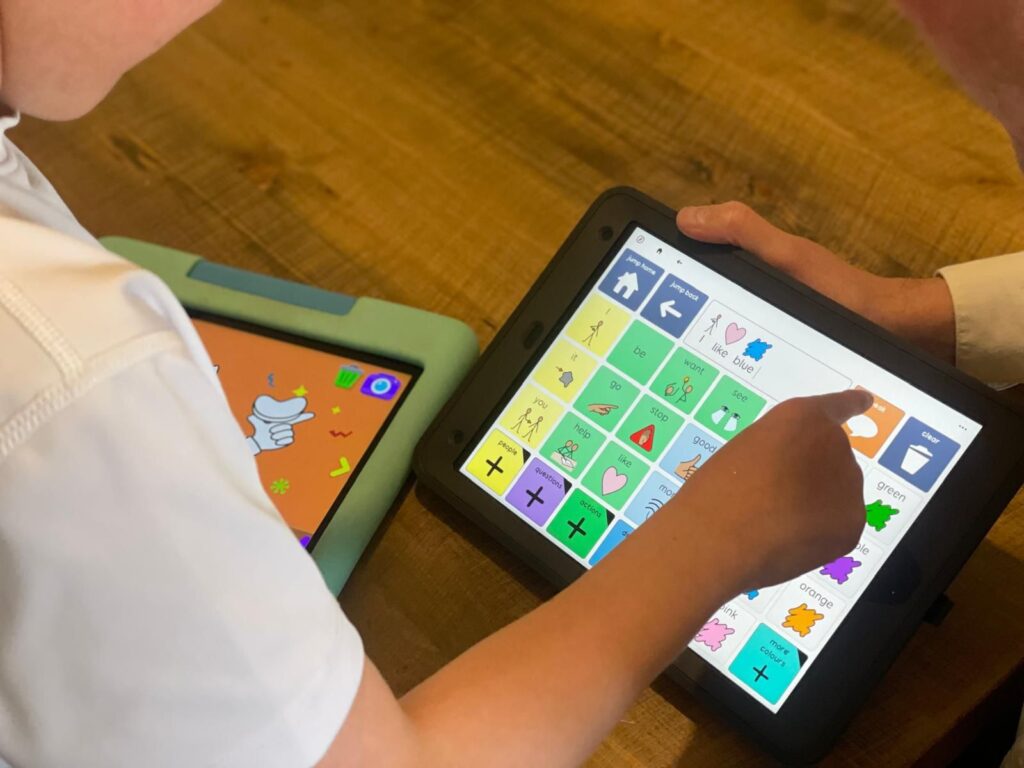

Last week I attended a training day hosted by Tobii Dynavox, which reignited my love of the TD Snap app. I won’t go into every feature, but I wanted to share a few highlights that stood out to me.
Firstly, TD Snap for Schools is an incredible initiative. It allows teachers to sign up for free access to the software on their interactive whiteboards (find out more here). I think this is brilliant. It makes AAC visible and accessible within everyday classroom teaching, showing how communication can truly be everywhere.
We also explored the symbols within TD Snap, and I hadn’t realised quite how extensive the library is. The symbols are diverse and inclusive, representing different ethnicities, genders and religions, and this diversity is now automatically reflected when creating pages. The Aphasia Page Set even uses its own symbol style, designed to be more age-appropriate for adult users. I also like that you can install and reorder multiple symbol sets, including high-contrast and text-only options, depending on what best supports understanding.
Just to give you a sense of scale, PCS has 64 results for the word mum, 145 for want, and 272 for I. I won’t dive too deeply into symbols here – that’s several blog posts’ worth of discussion – but I do love the flexibility and personalisation options that help tailor communication for each individual.
Another big win for me is that TD Snap works the same in edit mode on Windows and iPad. As an AAC consultant, that consistency saves a huge amount of time and avoids the headache of switching between two different systems. You can edit, back up, and share pages across platforms without needing to relearn the interface.
And then there’s the Motor Plan page set – the filter feature is the star of the show. Every word in the Motor Plan can be reached within three selections, and the layout never changes, helping build automaticity and confidence. The Vocabulary Filter lets you temporarily reduce what’s visible, which is perfect for structured teaching sessions. For example, if I’m teaching a smoothie-making lesson and want to focus on a handful of core and topic words, I can filter to those, model them in context, and then remove the filter afterwards. Over time, those words become embedded within the learner’s motor plan. The filter can also be used to create gradual vocabulary growth lists or to share specific sets between team members.
My final favourite feature is the ability to add YouTube videos directly into the app. You can even set exact start and stop times and the software automatically removes adverts. I won’t get into the debate about whether YouTube belongs on a communication device, but for some children it provides genuine motivation, and I can see great potential for it in GLP sessions.
At AAC and Me, we support a range of AAC software and devices, always aiming to find the right match for each individual. If you’re reading this and unsure what might work best for your child or setting, please get in touch to arrange an assessment.